Table of Contents
What is DLIB?
DLIB is an open source library that allows you to solve real world machine learning problems easily. The library is large and its tool are robust. Take a look at their website to see all the different tools and applications that the library comes with. For today’s workshop we’ll be highlighting what I think is a really cool tool that the library provides.
What is facial landmark detection
Facial landmark detection is the ability of a computer to detect and localize regions of the face such as the eyes, eyebrows, nose, and mouth. Here is an example of facial landmarks using a popular library that detects pose estimation, Openpose.

As you can see in the image, different facial landmarks are detected and tracked in the frame above. Dlib allows us to incorporate this same feature easily! For our purposes today, we will be using a pretrained model to detect facial landmarks with dlib.
The model estimates 68 different (x, y) coordinates on the face:
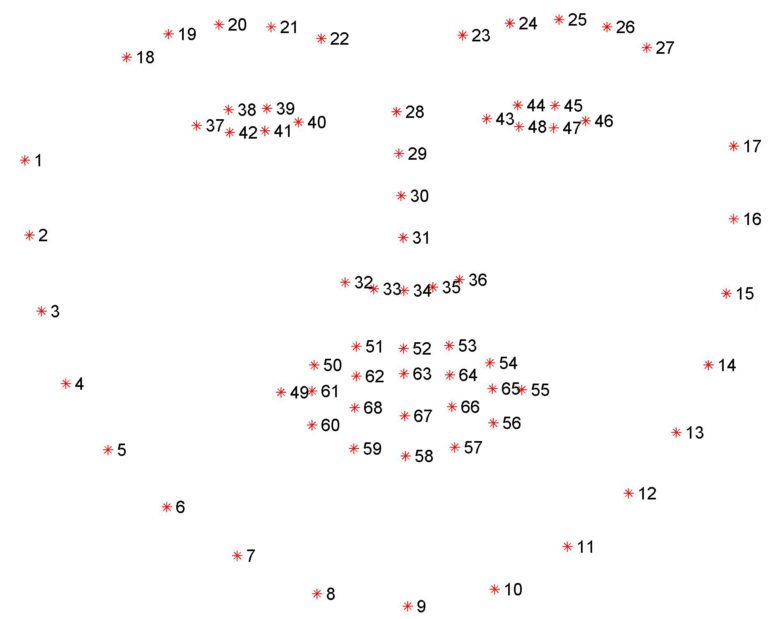
If you’re curious about trying to train the model yourself, this model was trained on the iBUG 300-W dataset. You can also try and look for alternative datasets that even map more points on the face, train it yourself, and easily implement it using Dlib.
Getting Started
Now that we have a basic idea of what facial landmark detection is, let’s go ahead and get started!
Imports
As usual, we want to import the libraries we will be using:
import dlib # facial landmark detection
import cv2 # processing images
from imutils import face_utils # converting between dlib and opencv
import urllib.request as urllib # retrieving images from the internet
import matplotlib.pyplot as plt # displaying images in google colab
Loading in images
We want to use a random image from the internet to test the model, in order to do so we must first define a function that does this for us.
def url_to_image(url):
  resp = urllib.urlretrieve(url, 'img_from_web.jpg')
  image = cv2.imread('img_from_web.jpg')
  image = cv2.cvtColor(image, cv2.COLOR_BGR2RGB)
  return image
This function will request an image from a url, save it locally and opencv will then store it in a variable. We also convert from BGR to RGB because OpenCV loads in images as BGR
url = "https://www.unh.edu/unhtoday/sites/default/files/styles/article_huge/public/article/2019/professional_woman_headshot.jpg?itok=3itzxHXh"
img = url_to_image(url)

plt.imshow(img)
plt.show()
Next we’ll load in the url from a random picture I found online, pass it through our handy function we just created, and display our image.
Detection
As mentioned before, dlib is useful because of the wide array of functions it includes that can be easily accessed. In order to detect the facial landmarks, we will first load in the frontal face detector.
detector = dlib.get_frontal_face_detector()
This detector is based on a standard Histogram of Oriented Gradients + Linear SVM method. Check out the embedded link for more information as to how it works!
We also load in our facial landmark predictor.
predictor = dlib.shape_predictor(predictor_path)
Now that those are loaded in we can begin making our detections.
detections = detector(img)
We use the detector to create a bounding box around any faces within the image.
shape = predictor(img, detections[0])
shape = face_utils.shape_to_np(shape)
We then use our predictor in order to get all the points for our image. We pass in the detections at index 0 because we are only using it to detect one face. If we wanted to use it to detect more than 1 face, we would insert this following section into a for loop and enumerate through each detection, making a prediction at each point.
Then, we convert the given shape to a numpy array using the imutils shape_to_np function. This allows us to more easily work with the data we need.
Drawing our points
Now that the points have been detected, we’ll want to draw these on our image in order to show them visually.
(x, y, w, h) = face_utils.rect_to_bb(detections[0])
cv2.rectangle(img, (x, y), (x + w, y + h), (0, 255, 0), 2)
Above we took the coordiantes of the dlib face detection and drew a box around our image.
for (x, y) in shape:
  cv2.circle(img, (x, y), 5, (0, 0, 255), -1)
Then we take the facial landmark points and plot them on our image.